General Settings
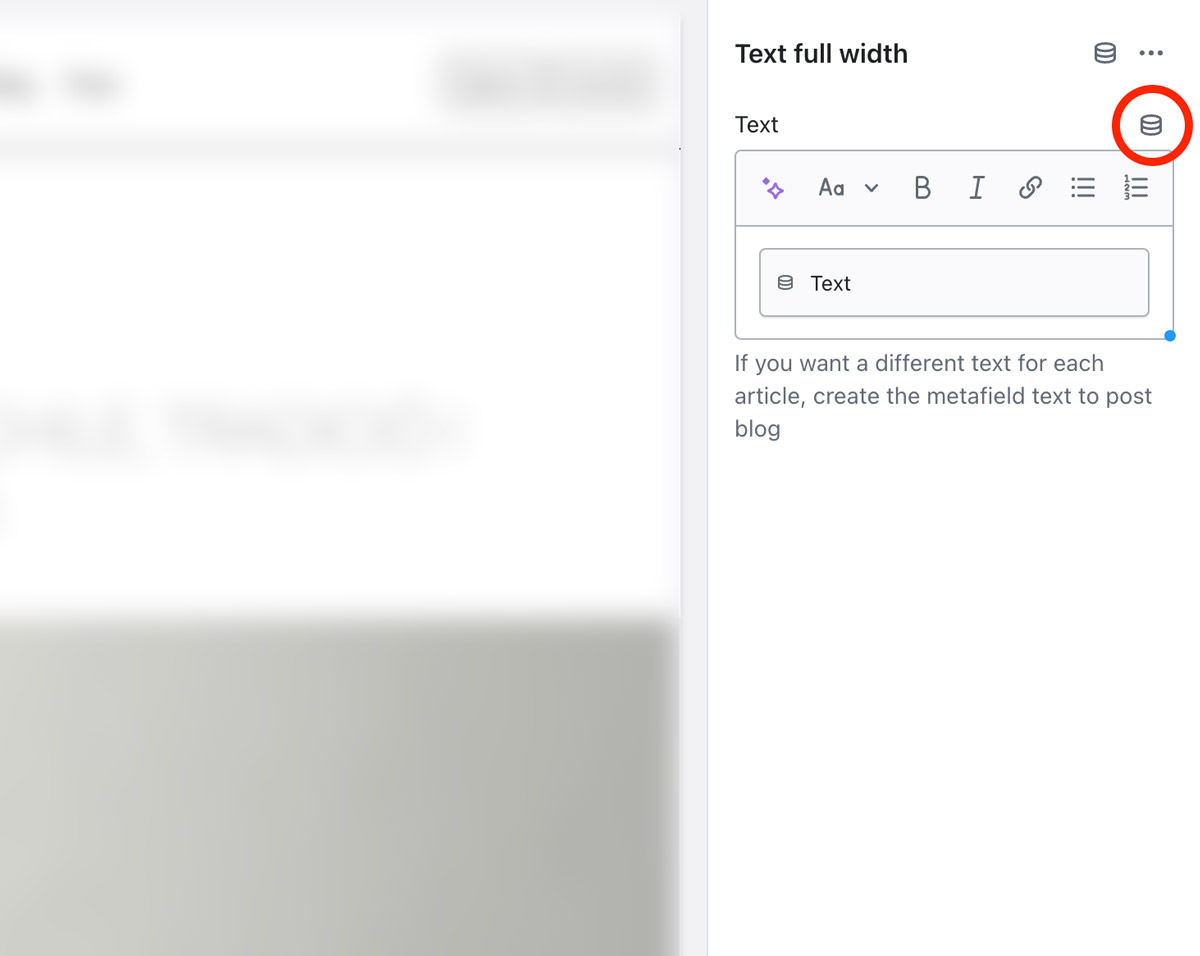
1. Create the metafiled
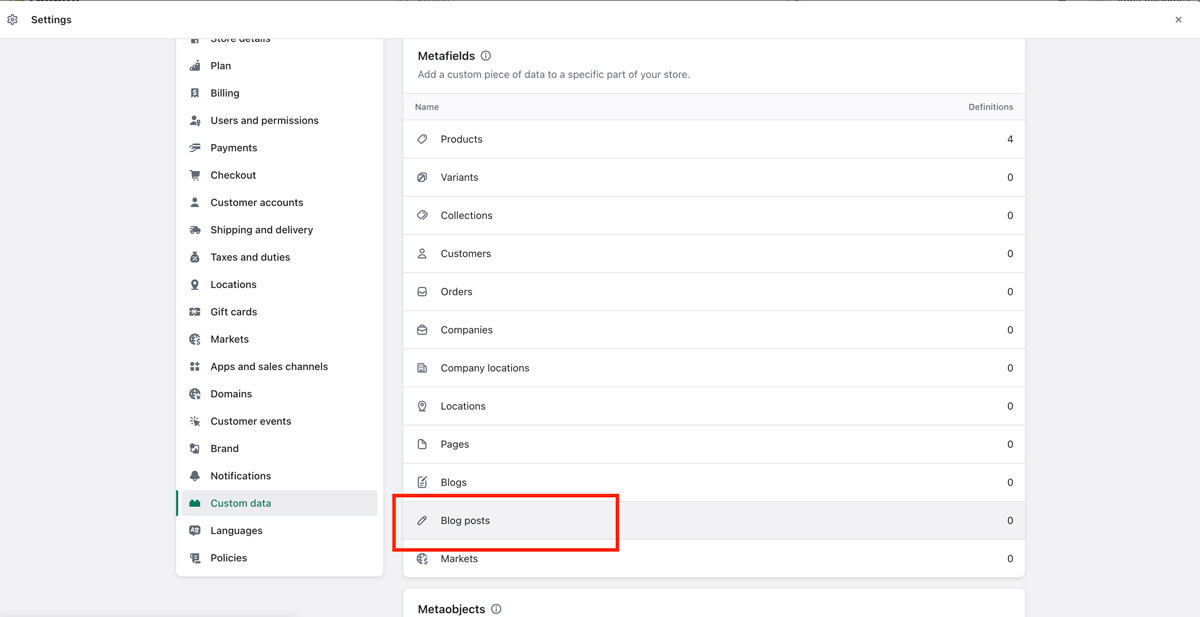
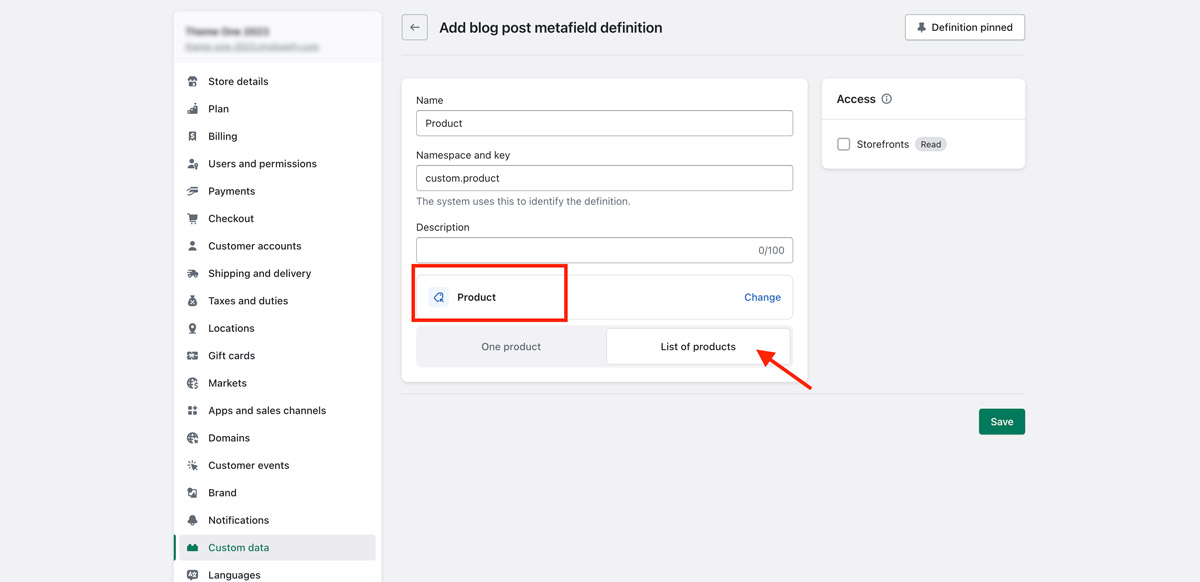
2. In the customization of the blog post template theme, put the metafield you created
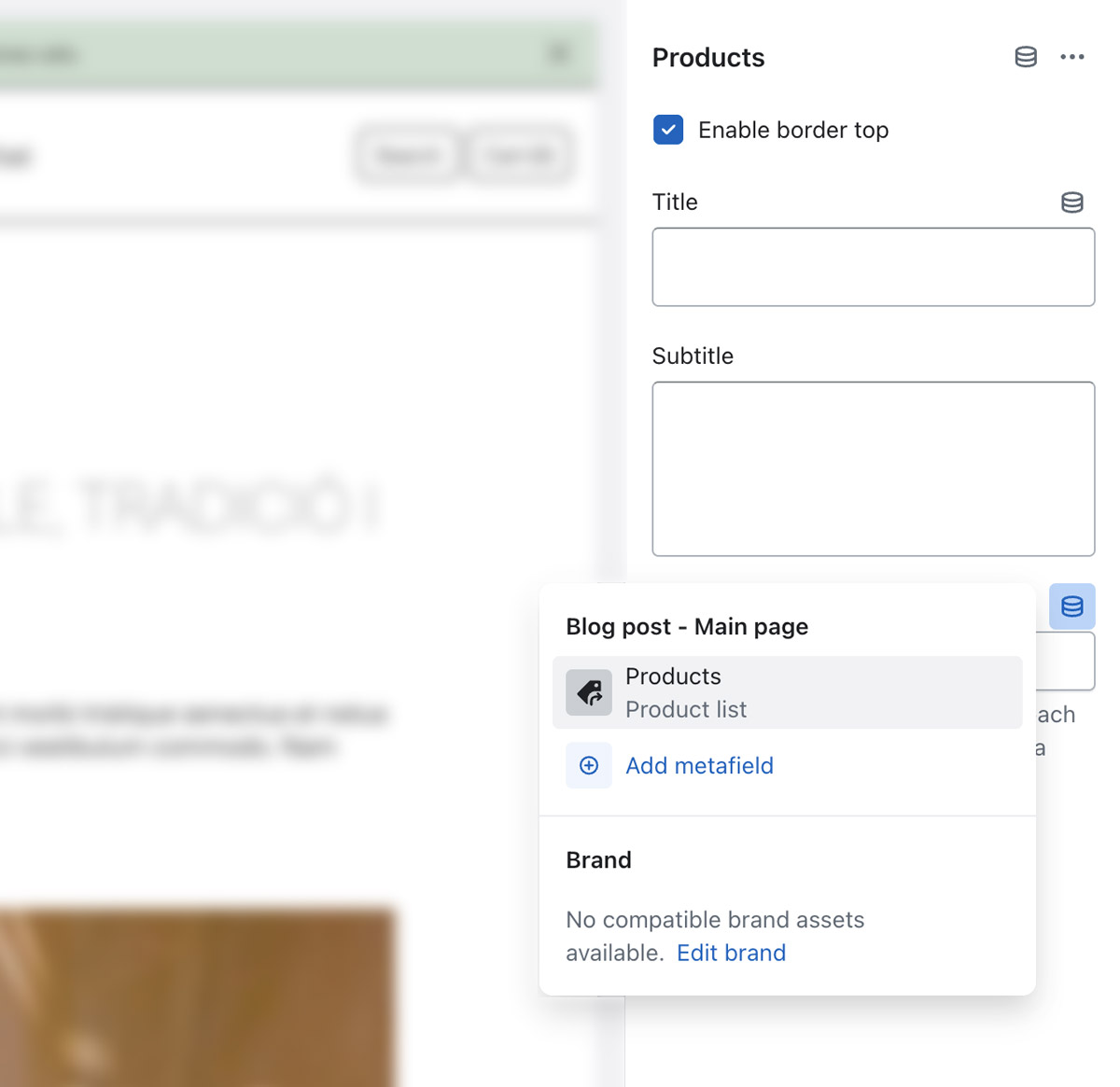
Header Group
1. Create the metafiled
2. In the customization of the blog post template theme, put the metafield you created
Header
There are several types of the header in this theme. You can choose a variant.
1. Create the metafiled
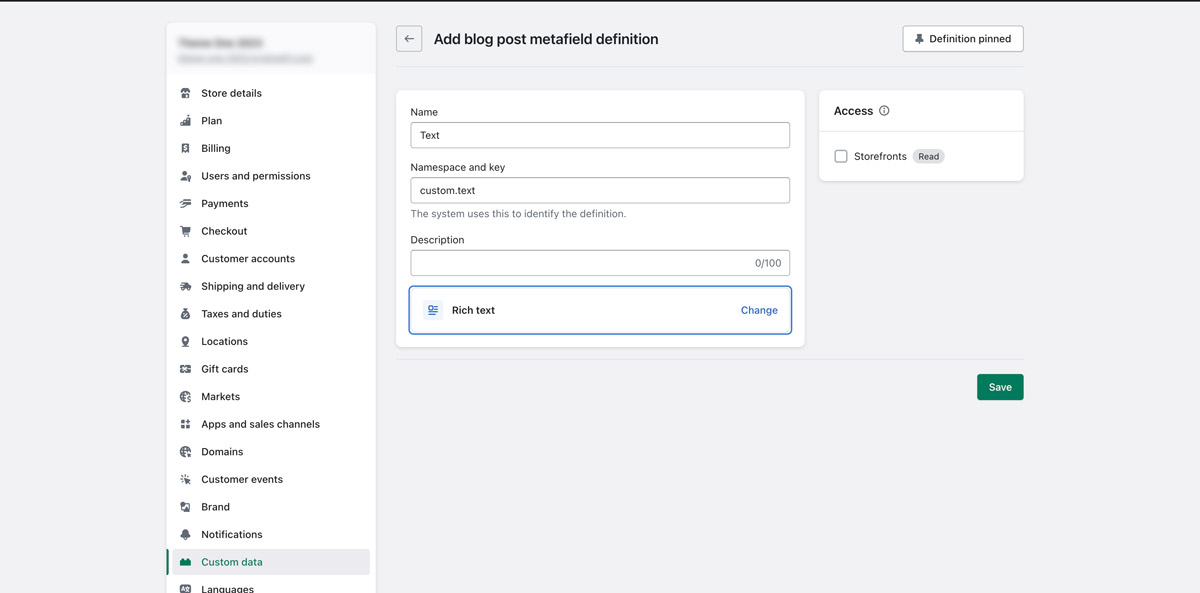
2. In the customization of the blog post template theme, put the metafield you created
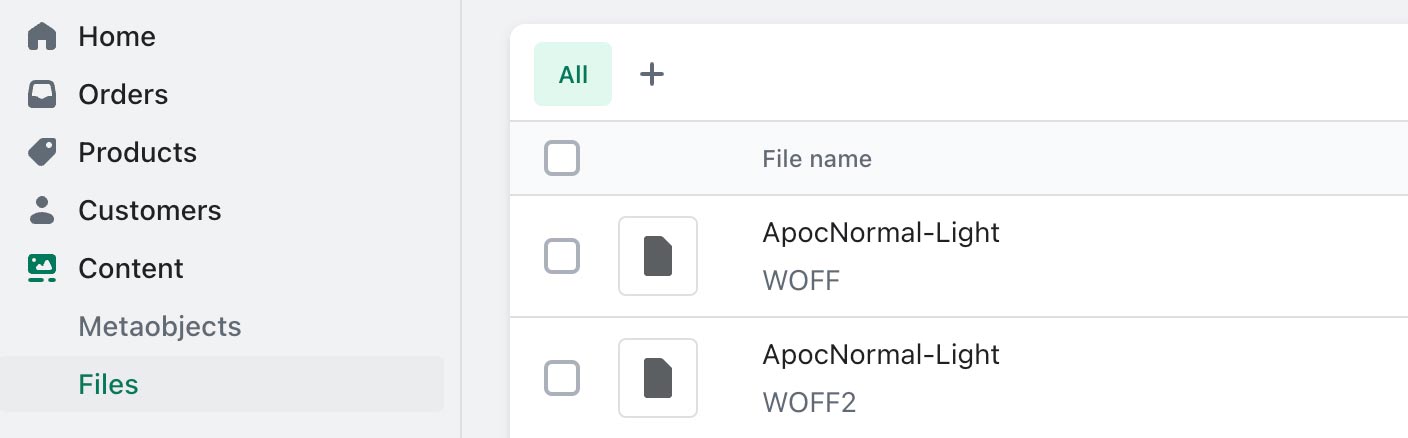
1. Upload the woff and woff2 sources to content -> Files
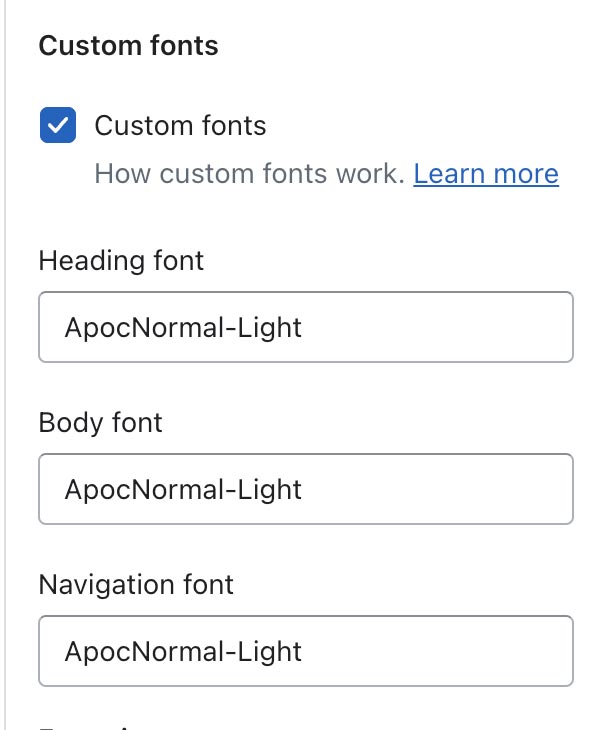
2. In Theme settings -> Typography, check in custom fonts.
3. Set the same name as the file uploaded in files.
Footer Group
1. Create the metafiled
2. In the customization of the blog post template theme, put the metafield you created
On the product page:
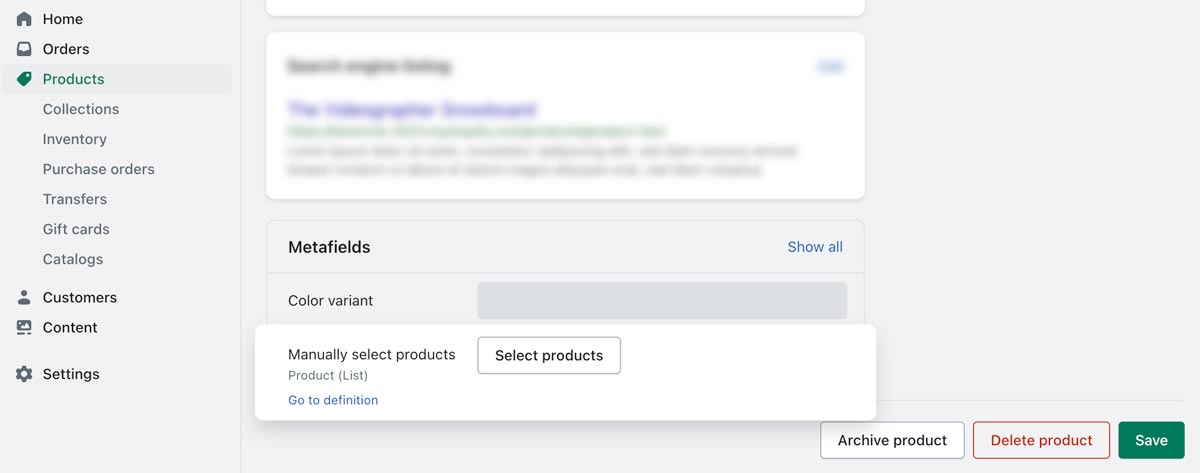
1. Create the metafiled
2. In the customization of the blog post template theme, put the metafield you created
1. Create the metafiled
2. In the customization of the blog post template theme, put the metafield you created
Pages
Collections page
There are several types of the header in this theme. You can choose a variant.
1. Create the metafiled
2. In the customization of the blog post template theme, put the metafield you created
1. Create the metafiled
2. In the customization of the blog post template theme, put the metafield you created
Blog
In this theme, you can use a predictive search. It is enabled by default, but you can disable it in the Theme settings > Search.
On the product page:
Your theme allows you to display product variants in drop downs or swatch buttons. When you have an option named color or colour its options can be shown a solid color or images.
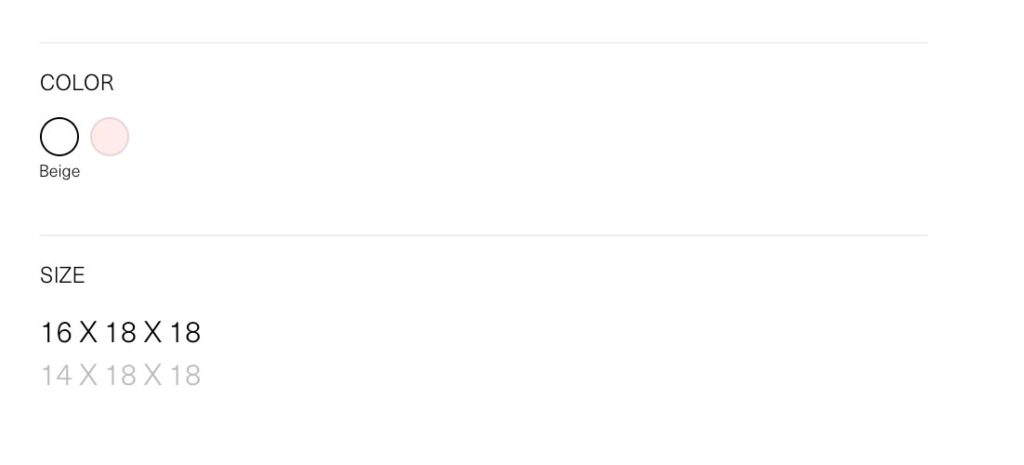
In the theme editor, in the variants block. You can change the options:
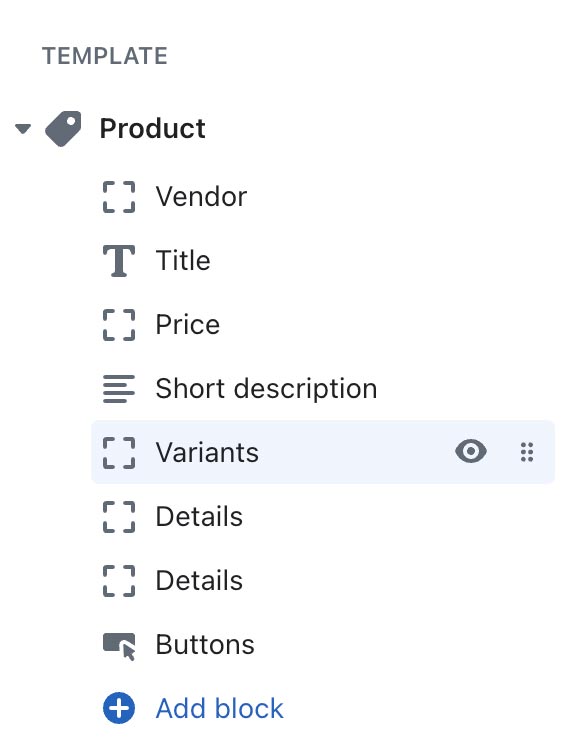
- Set the Product variant style to: Swatches
- Check the Show color swatches
- Select color swatch style option
- Click save to apply the change
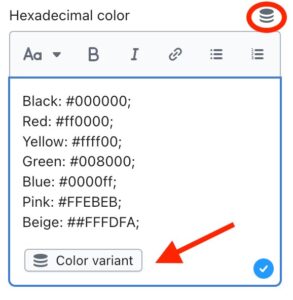
Hexadecimal color:
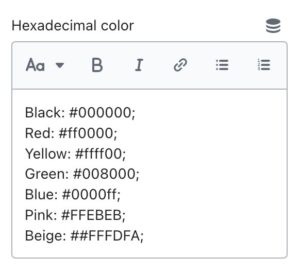
- Type with this format (Black: #000000;) the hexadecimal inside the text box. The name of the color must be the same as the name of the variant.
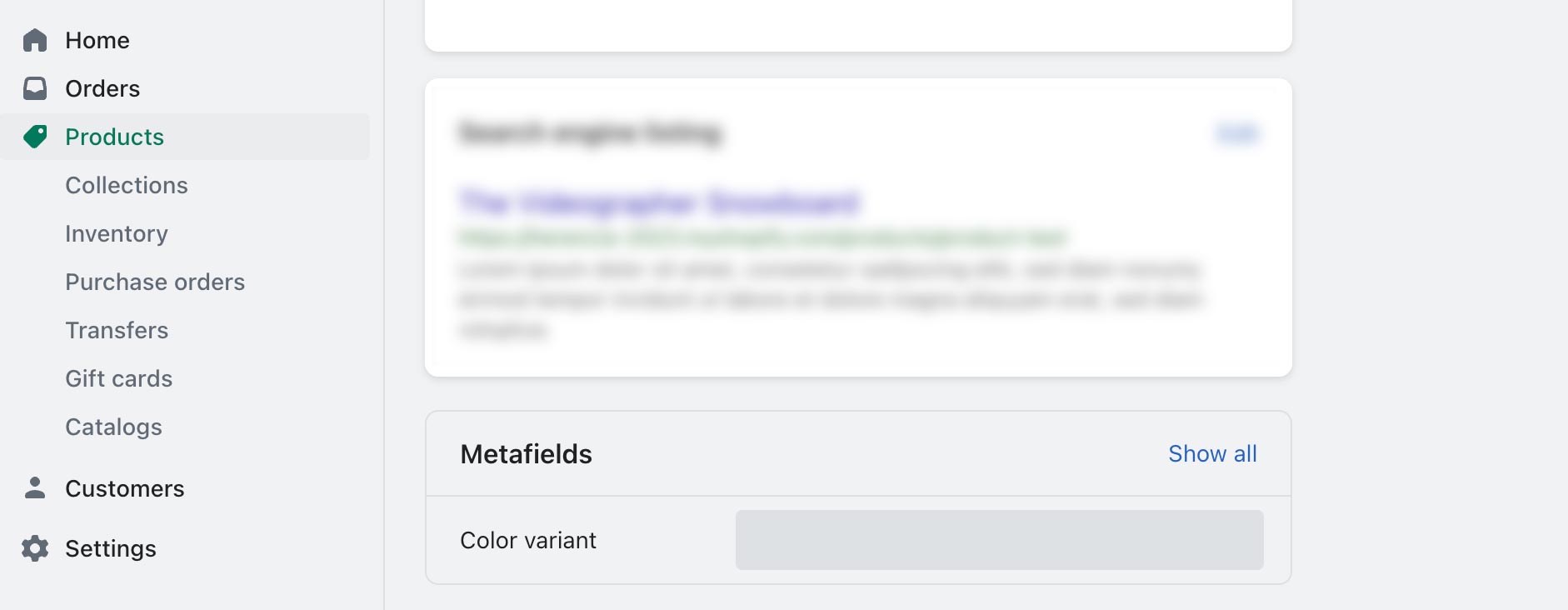
- The colors are general for all products. If you want a different color for a specific product, it will be put with a metafield inside the product sheet.
Custom uploaded images:
To prepare the images:
- Create a 50px x 50px png image
- Name the image according to the name of the variant it will represent
but keep the filename in lowercase and replace any spaces in the name with a hyphenExample:
Variant named: Red requires an image named: red.png
Variant named Red and White requires and image named red-and-white.png
- When your images are ready open your Shopify admin, click on Content and then click on Files just below it
- Upload your images to the files area, this will make them accessible for your theme.
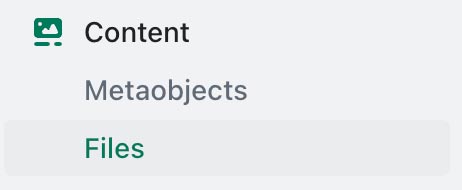
Image of variant:
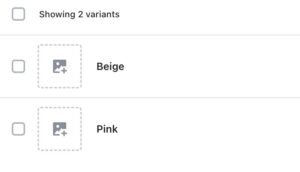
This option get the image that has been defined within the variant.
Open some products in your store to test.