WA Whatsapp
Welcome to the documentation for WA Whatsapp, a versatile Shopify plugin designed to enrich your store’s functionality.
With WA Whatsapp, your customers gain the ability to contact you via Whatsapp with a simple click on a over the top icon.
WA Whatsapp
Welcome to the documentation for WA Whatsapp, a versatile Shopify plugin designed to enrich your store’s functionality.
With WA Whatsapp, your customers gain the ability to contact you via Whatsapp with a simple click on a over the top icon.
Setup
Once the application is installed, we will see the administration panel. From here, we can configure the appearance and parameters of the app.
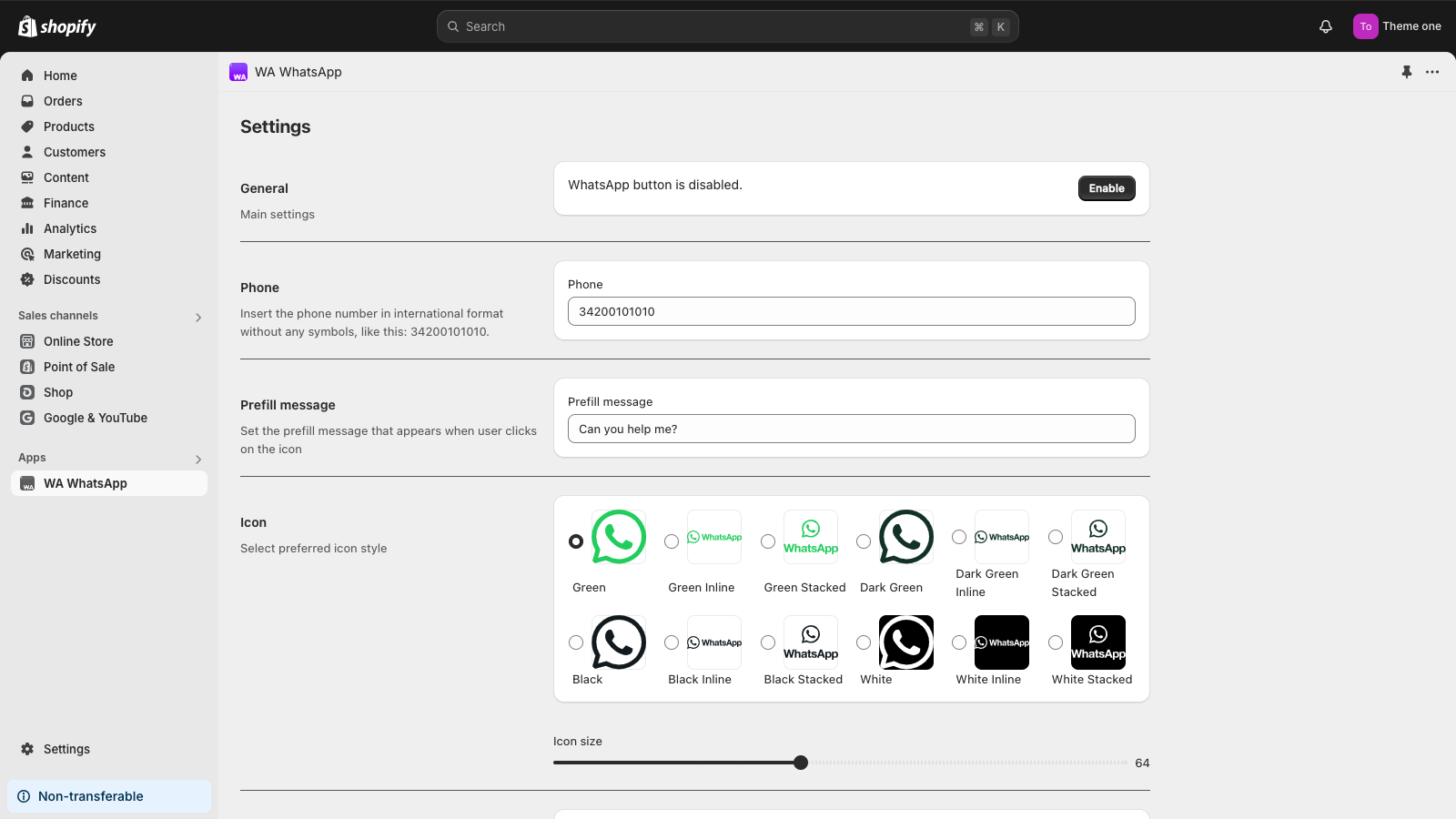
The first option indicates whether the floating button is active in the theme. You can enable or disable the button at any time.
Since this is the first setup, let’s configure the app before activating the button.
The most important parameter is the phone number where you want to receive WhatsApp messages. Enter only the phone number with the international code in the “Phone” field. For example, for a phone number in Spain, you would first enter 34, which is Spain’s country code, followed by the complete phone number. In our example, we used 200101010.
The next parameter, “Prefill message,” allows you to enter a pre-filled message when starting a conversation. In our example, we’ve used “Can you help me?”. This field can be left empty if no message is desired.
In the “Icon” section, you can choose the appearance of the WhatsApp floating button. Simply select the desired icon.
You can adjust the icon size by sliding the “Icon size” slider.
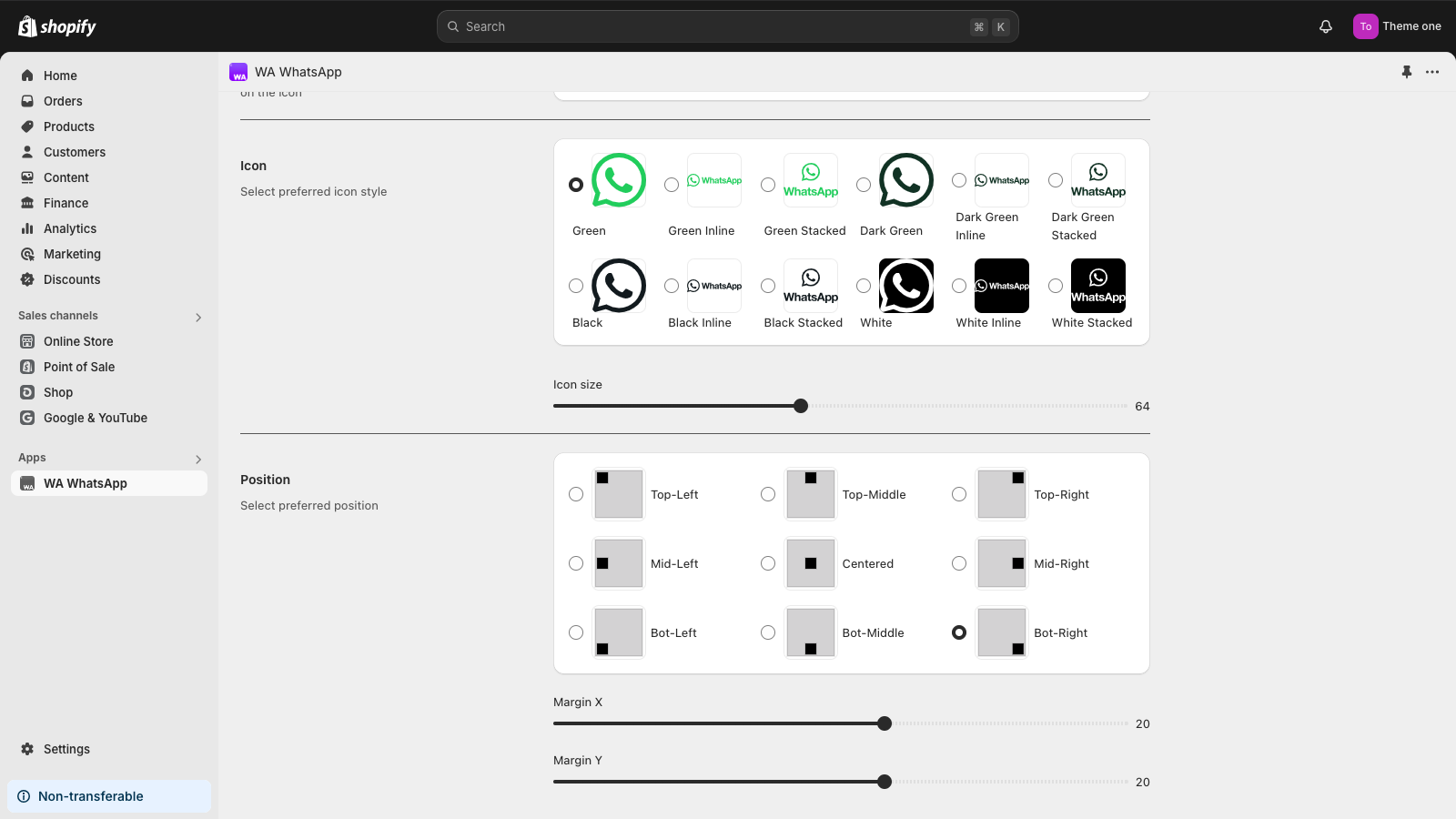
Finally, choose where on the screen you want the floating button to appear. Select the position and adjust the margins using the sliders labeled “Margin X” for the horizontal margin and “Margin Y” for the vertical margin.
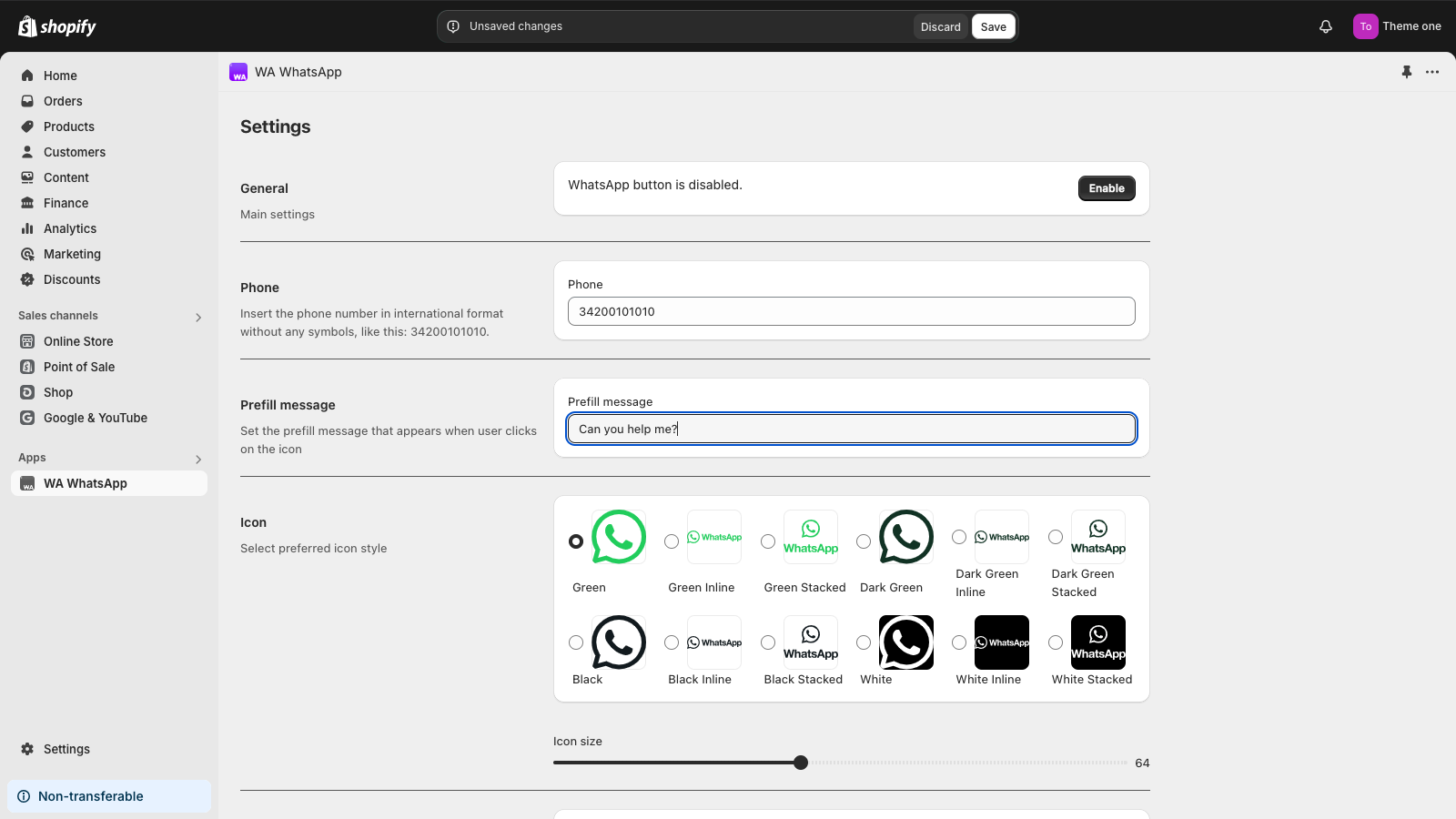
Once the configuration is complete, don’t forget to click the “Save” button at the top of the screen to apply your changes.
Now is a good time to activate the button in our theme. To do this, click “Enable” to activate the button in the “General” section of the admin panel. If it’s already active, you will see a button labeled “Disable”. Both buttons redirect you to Shopify’s theme editor.
Activate button
As we can see in the menu on the left, our floating button is currently disabled:
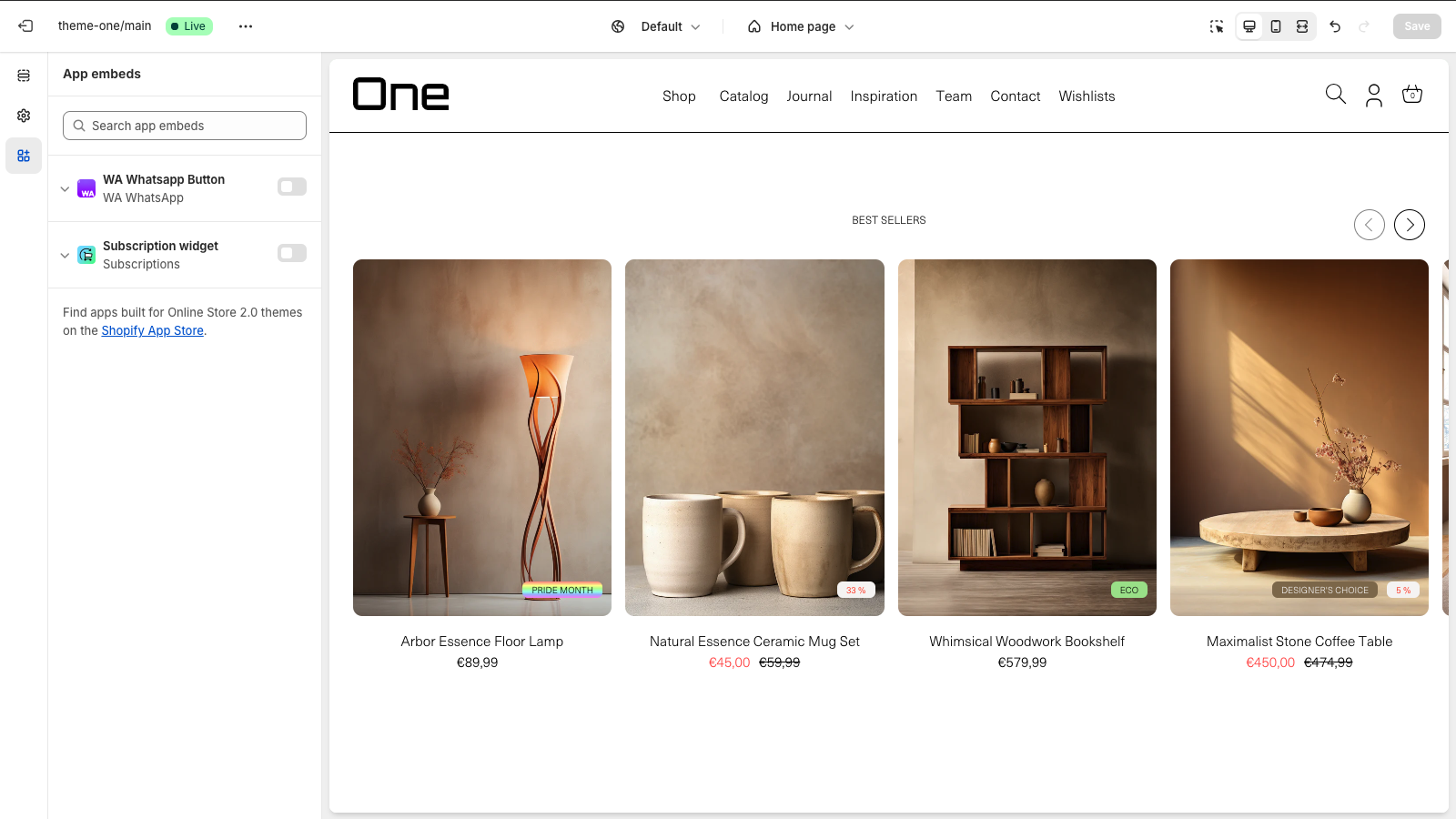
To activate it, just click the button in the app WA WhatsApp like in the image below.
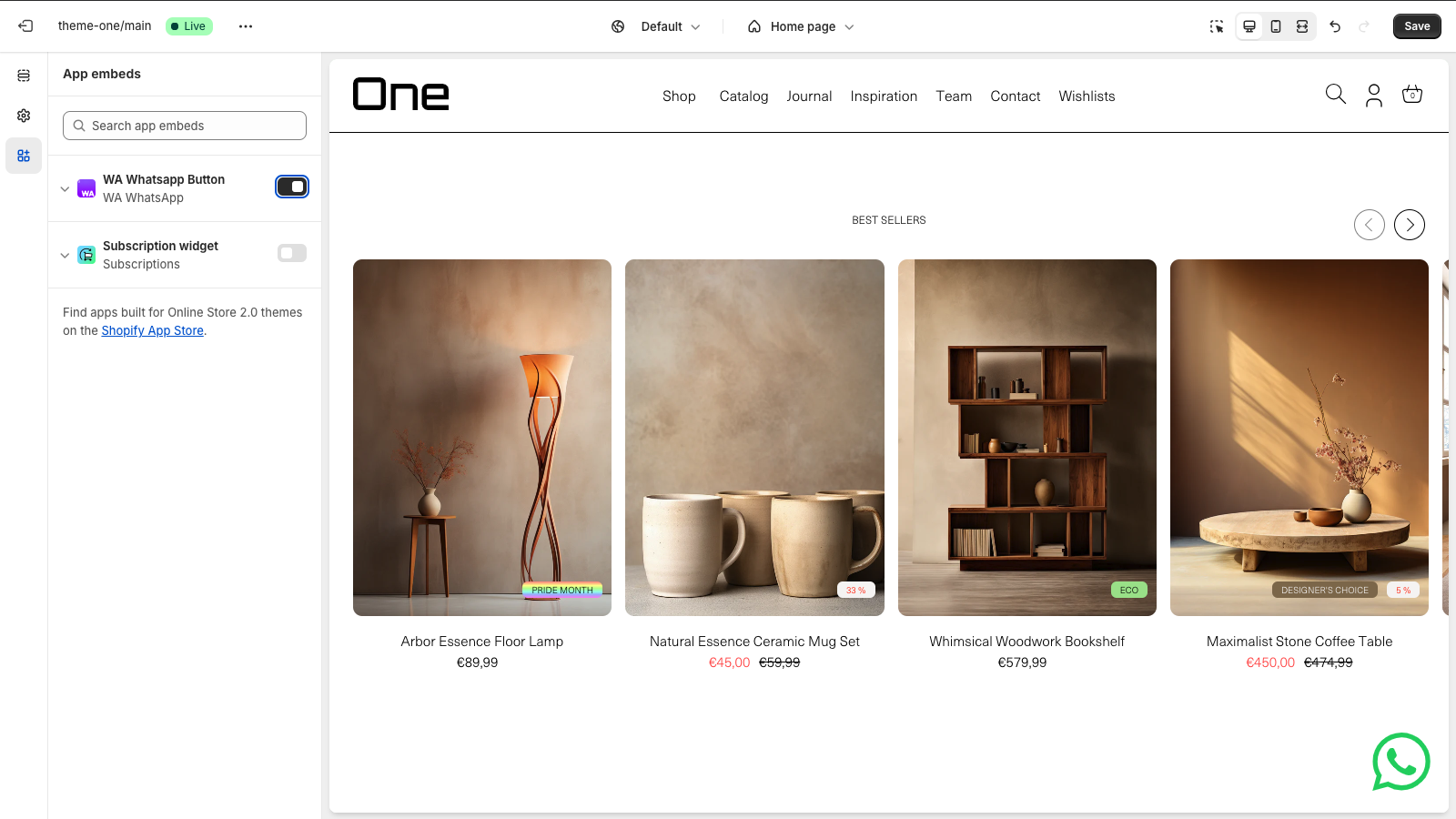
Once clicked, the WhatsApp floating button will appear with the design and position previously selected in the app’s administration panel.
Don’t forget to save your changes by clicking the “Save” button at the top-right corner.
Also, you can access the administration panel from the theme editor by clicking on the app name in the left menu and selecting “Manage app”:
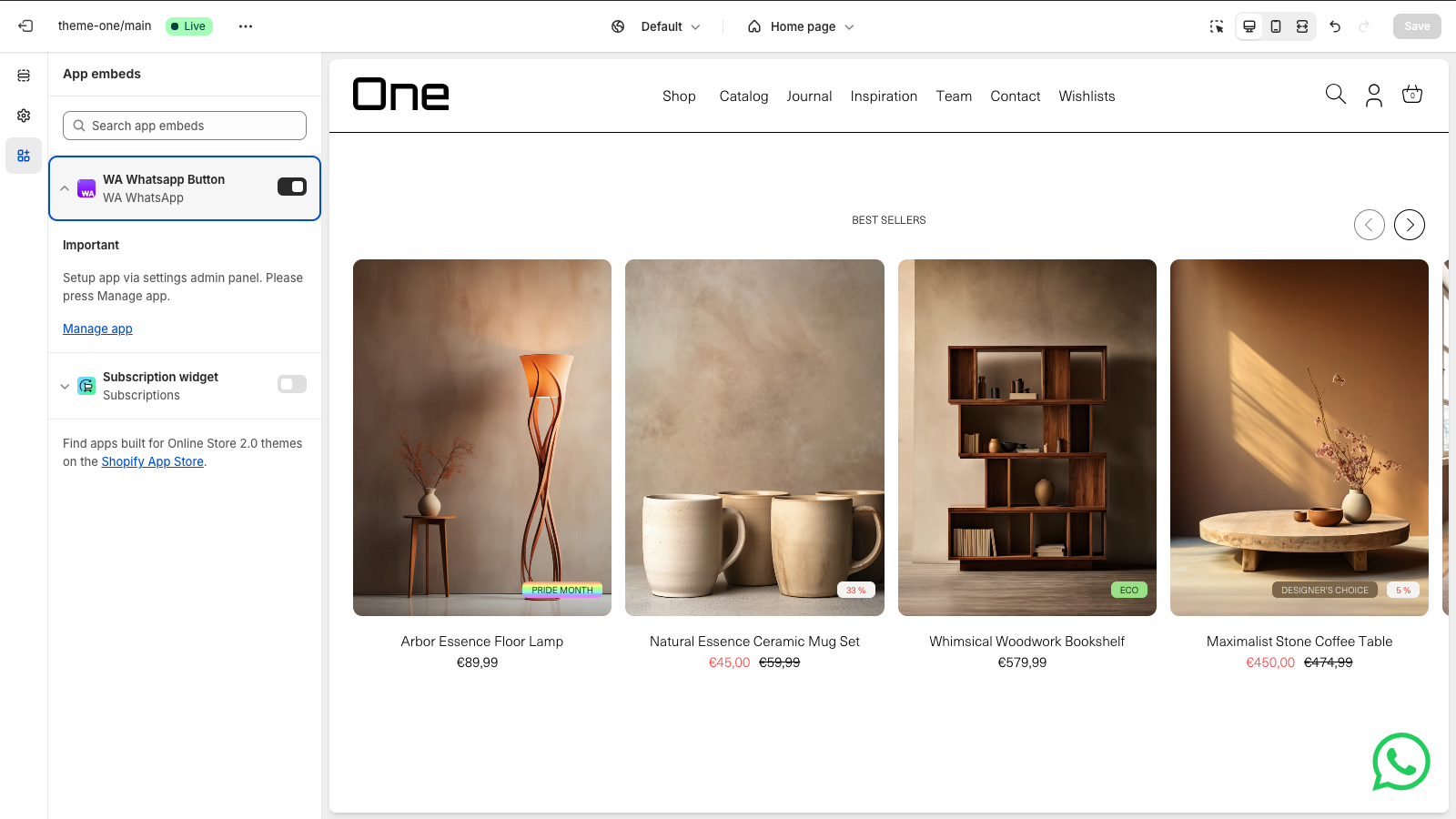
And that’s it!
Now, if we visit our store, we will see the floating button, and when pressed, a window will pop up where the customer can directly chat with the provided phone number.

Closing
Thank you for using our WA Whatsapp app. We hope this guide has been helpful. If you have any questions or need further assistance, please don’t hesitate to contact our support team. Good luck with your Shopify store!